How to add reminders in Google Sheets (3 ways)
Google Sheets has no built-in reminder button. Here are the three common ways to get reminded about dates in a sheet, what each is good at, and where each falls short.
| 1. Formula + colours | 2. Add Reminders add-on | 3. Email Reminders add-on | |
|---|---|---|---|
| Sends email | No | Yes | Yes |
| Works with the sheet closed | Only shows when you open it | Yes (some reviews report missed sends) | Yes |
| Days before / repeat monthly or yearly | Manual | Yes | Yes |
| Log of every email sent | No | — | Yes, on a log tab |
| Cost | Free | Free | Free (up to 5 reminders per spreadsheet) |
Watch: set it up in 2 minutes

1. A formula and colour highlighting (no add-on)
Good if you open the sheet every day and just want to see what's coming up. If your date is in column E, put this in the next column and copy it down:
=IF(E2="", "", E2 - TODAY())
That shows the days left. Then use Format → Conditional formatting to turn a row red when it's 0 or less, and yellow when it's 7 or less. Full steps: Due date countdown in Google Sheets.
The catch: nothing reaches you unless you open the sheet. No email, no notification.
2. The Add Reminders add-on
"Add Reminders" is the best-known reminder add-on on the Google Workspace Marketplace, with over 2 million installs. It's free, sends emails a set number of days before or after a date, and can email a different person for each row.
The catch: it's rated around 3 out of 5, and the common complaints in its recent reviews are reminders that stop sending without warning, unwanted daily emails, a setup that's hard to follow, and emails that can't include other details from the row. It's worth trying, but check it actually sends before you rely on it.
3. The Email Reminders add-on (ours)
We built Email Reminders - Due Date Alerts because we wanted reminders we could trust and check. It's free and works in any Google Sheet:
- Install it from the Google Workspace Marketplace.
- Open Extensions → Email Reminders → Open reminders and click + Add.
- Pick a preset (rent, bill, renewal, invoice, certification or insurance expiry) or start from scratch. Choose the date column and when to send: on the day, days before or after (tick several, e.g. 90, 60, 30 and 7 days before), once, monthly or yearly.
- Choose who gets it: the email in each row, or always the same address. Put any column in the message with
{{Column name}}. - Click Save, then Turn on. It runs every day in your Google account, even with your computer off.
Step by step: send an email from Google Sheets based on a date. Every email it sends is written to a CedarDesk Log tab, and it never sends the same reminder twice, so you can always see what went out and when. It can also email you when a Google Form response arrives or a new row is added.
Install Email Reminders (free)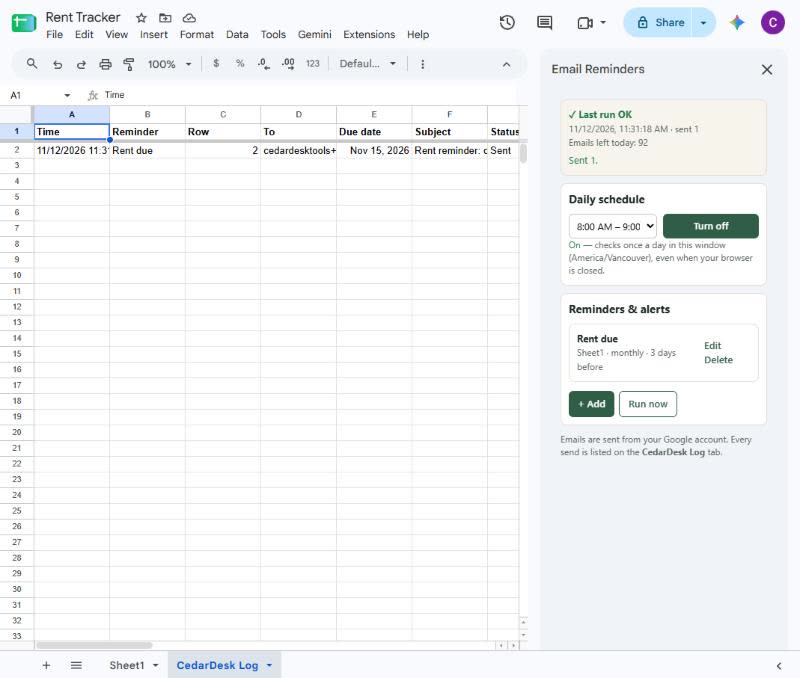
Which should you use?
- You open the sheet daily and just want to see it: the formula.
- You need emails and want to be able to check they went out: Email Reminders.
- You need different reminders per row and already use it happily: Add Reminders is fine, just test it.
FAQ
Can Google Sheets send reminders by itself?
No. Sheets can show a countdown with a formula, but sending an email needs an add-on or an Apps Script.
Can I get a reminder for every row?
Yes. Both add-ons check every row and email the address in that row, or a fixed address.
Do reminders send if my computer is off?
With an add-on, yes. They run in your Google account on Google's servers.